How can we help?
Start here
Welcome to PRETTY OS
You can have a real website live today. You don’t need to know anything about websites. Just talk to PRETTY OS like you would text an assistant.
Build your first site in 5 steps
- 1Log in. You’ll land on your dashboard, with the chat box in the middle.
- 2Tell it about your business. Say what you do, where you are, and what you offer. Or pick a template to start from (see Templates below).
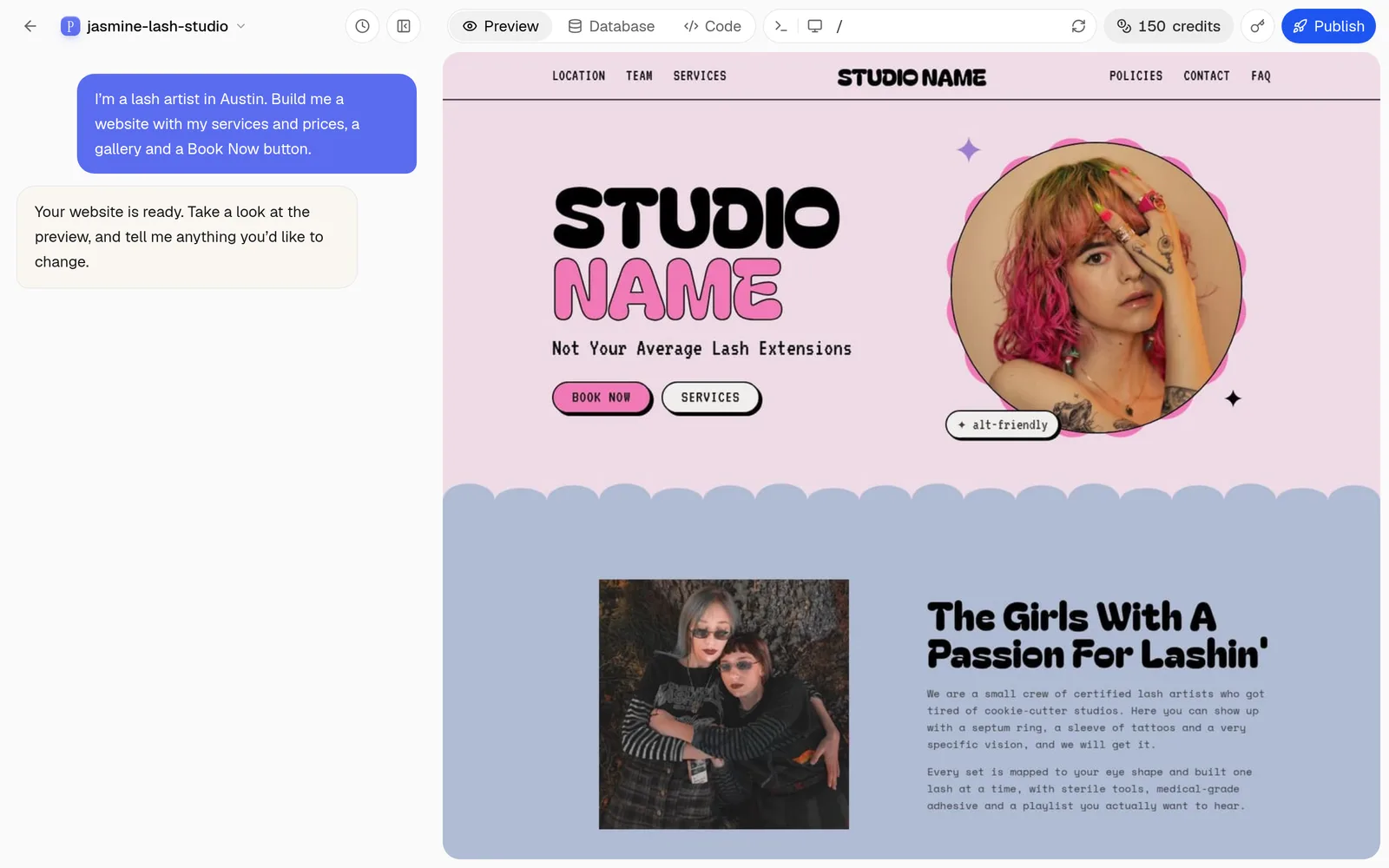
- 3Watch it build. Your website appears in a preview while PRETTY OS works.
- 4Change anything by chatting. Don’t like something? Just say so.
- 5Publish. When you love it, publish it and share your link.
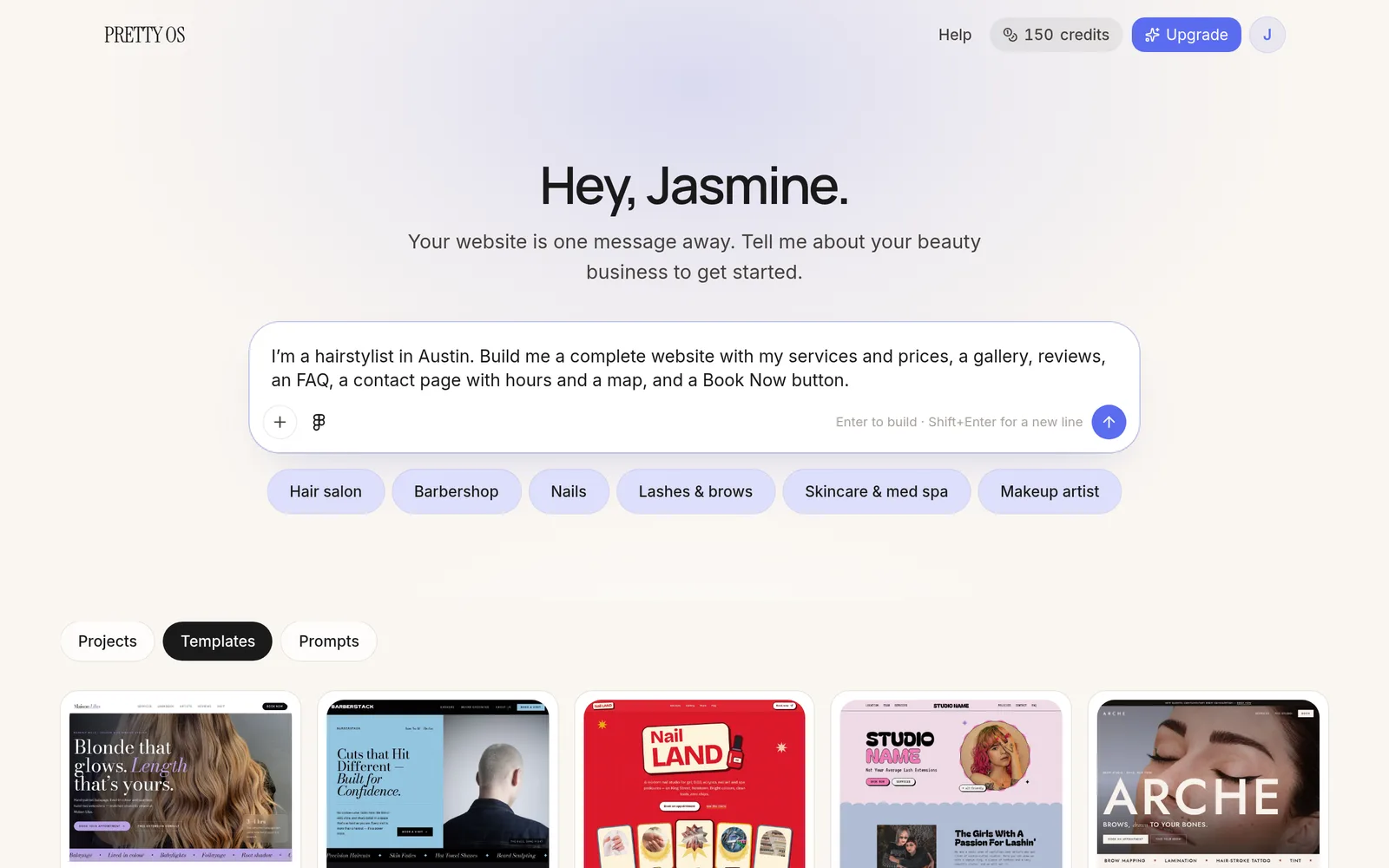
Try this first message:
“I’m a hairstylist in Austin. Build me a complete website with my services and prices, a gallery, reviews, an FAQ, a contact page with hours and a map, and a Book Now button.”
Building your site
Tell it what you want
PRETTY OS is an AI. Every message you send tells it what to build or change. The more specific you are, the better it gets.
Tips for great results
- Be specific. Include your services, prices, city and the feel you want (soft, bold, luxury, playful).
- One topic at a time. Change the colors, then add a page, then fix the text. It’s easier to see what changed.
- Say what you want to see. “Make the heading bigger” works better than “I don’t like it.”
- Use the paperclip. Attach your logo, your photos, or a screenshot of a website you like, then tell it what to do with them.
- Check the sample content. PRETTY OS may fill in sample names, prices and reviews so your site looks complete. Replace all of it with your real information before you publish. Never publish sample reviews as if they were real.
Example prompts you can copy
Change the look
“Make the colors softer. Use blush pink and cream.”
“Use a more elegant serif font for the headings.”
“Make the whole site feel more modern and minimal.”
“Make the Book Now button bigger and easier to see.”
Add or change content
“Add my services and prices: Cut and style $65, Color from $120, Blowout $45.”
“Change my hours to Tuesday to Saturday, 10am to 6pm.”
“Add an About page. Here is my story: [paste your story].”
“Add an FAQ page about cancellations, deposits and first visits.”
“Add a page for my team, with a photo and short bio for each person.”
Photos and logo
“Use the attached logo in the header.”
“Make the site look like the attached screenshot.”
“Put the attached photos in a gallery on the home page.”
Social and Google
“Add Instagram and TikTok icons in the footer that link to [your links].”
“Add my address, a map and my phone number to the Contact page.”
“Make sure every page has a good title and description for Google.”
Bigger things
“Add a contact form and show me all the messages on a private page only I can open.”
“Build me a simple page where I can see how many people visit my site.”
“Add a gift card page where clients can request a gift card.”
“Add a waitlist form for when I’m fully booked.”
When something isn’t right
“That’s not what I meant. I want [describe it].”
“Fix how the site looks on a phone.”
Templates
Start with a template
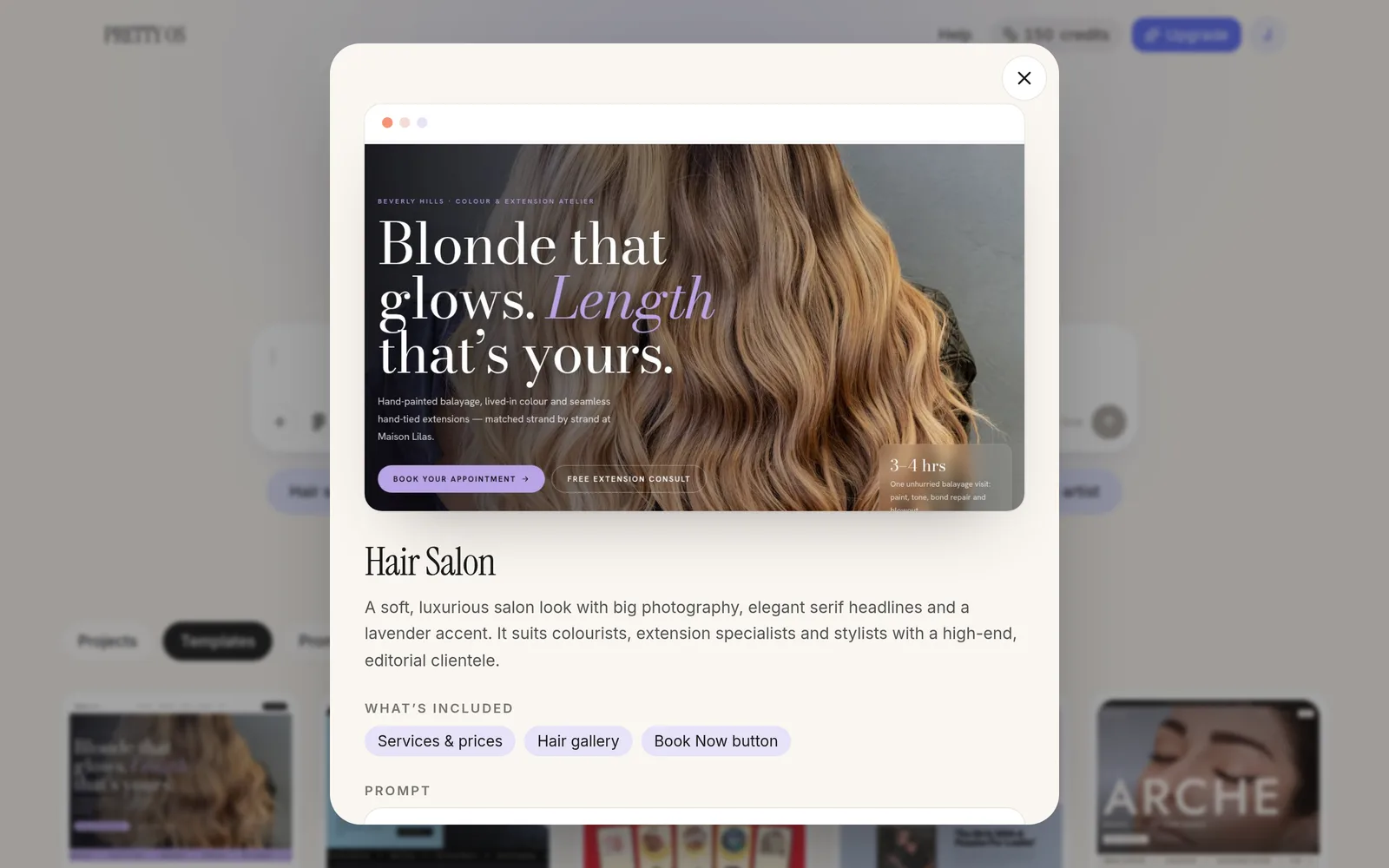
Templates are ready-made looks designed for beauty businesses, with services, pricing, a gallery and a Book Now button already in place.
- 1On your dashboard, scroll down to Templates.
- 2Click a template to see a preview and its description.
- 3Click Use this prompt. The prompt and the template image appear in your chat box.
- 4Add your details, such as your business name, your city and your services.
- 5Send it and watch your site build.
Publishing and your domain
Go live and share your link
Publish your site
- 1When you’re happy with your preview, click Publish.
- 2Your site goes live and you get a link you can share.
- 3Made a change later? Publish again to update your live site.
Use your own domain
A domain is your website’s address, like yourname.com. Using your own looks more professional and is easier for clients to remember. It also makes your link look better in your Instagram bio and on your business cards.
Don’t have a domain yet? Buy one from a domain provider such as Namecheap, GoDaddy or Squarespace Domains. A .com usually costs around $10 to $20 per year, and prices vary. Pick something short that matches your business name.
Connect a domain you already own
- 1Publish your site first.
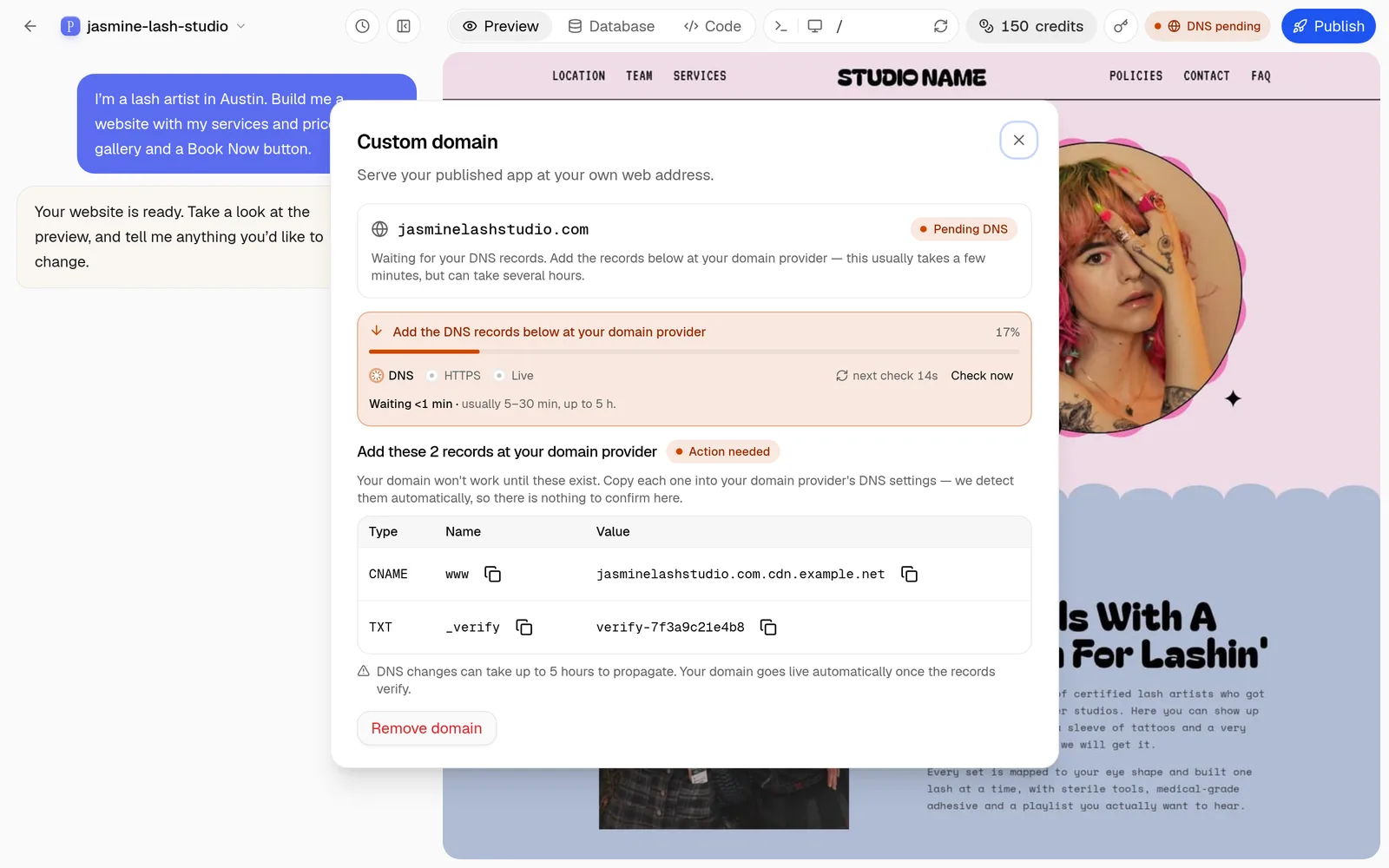
- 2Open your site’s domain settings and type in your domain.
- 3PRETTY OS shows you a few settings (called DNS records) to add at your domain provider.
- 4Log in to your domain provider and add those records. Not sure where? See the list below.
- 5Wait. It can take a few minutes, and up to 48 hours, to start working.
- 6Visit your domain to check it. You’re live.
Where to find DNS settings
- GoDaddy: My Products, then your domain, then DNS.
- Namecheap: Domain List, Manage, then Advanced DNS.
- Squarespace Domains: Domains, your domain, then DNS Settings.
- Cloudflare: Your domain, then DNS, then Records.
Menu names change sometimes. If you get stuck, email hello@myprettyos.com and we’ll walk you through it.
Put your link everywhere
- Your Instagram bio and your Facebook page.
- The website field on your Google Business Profile, plus Yelp and Apple Maps.
- Your business cards, menus and email signature.
- A QR code at your front desk or mirror.
Connect your booking app
Keep your booking app
Your site works with the booking software you already use, like Vagaro, Square, Booksy, GlossGenius, Fresha or Acuity. You don’t have to switch anything.
- 1Open your booking app and copy your booking link.
- 2Tell PRETTY OS to use it:
“Make every Book Now button open this link: [your booking link].”
Show your booking page inside your site
If your booking app gives you an embed code, you can show it right on your site:
“Add a Book Now page and embed my booking app on it using this code: [paste the embed code].”
Forms and messages
Get messages from clients
Your site can have a contact form, an inquiry form or a waitlist. Ask PRETTY OS to add one and to show you the messages that come in.
“Add a contact form with name, email, phone and message, and show me all submissions on a private page only I can open.”
Credits and billing
How credits work
Credits are what PRETTY OS uses when it builds or changes your site. Bigger requests, like a whole new page or a full redesign, use more credits. Small changes use fewer.
Your plan
- Free: 50 credits to start, so you can try it out.
- Paid: $29 per month with 100 credits every month. It renews each month until you cancel.
- Add-on credits: Need more? Buy extra credits any time.
Good to know
- Monthly credits expire at the end of each billing period and don’t roll over.
- Add-on credits don’t expire while your account is open and in good standing.
- If you run out in the middle of a build, it stops and keeps your last working version. Buy add-on credits or wait for your plan to renew.
- Credits and fees are not refundable. See our Terms of Service for details.
Save credits
- Put several small changes in one message.
- Describe exactly what you want, so it gets it right the first time.
- Start from a template instead of from a blank page.
- Check the preview before you send another change.
Cancel anytime
Open your account settings and cancel your plan. You keep access until the end of your current billing period, and you won’t be charged again.
Your account and your files
Your site belongs to you
- Update your account. Open your account settings to change your email, password or payment method.
- Download your site. You can download your site’s code and data from your account at any time. Some export features may depend on your plan.
- Keep your own copy. Download your site after big updates and keep it somewhere safe. If your plan ends or your account closes, your site may go offline, and we may delete it 30 days after closure.
Troubleshooting
If something isn’t working
My site looks wrong on my phone
Tell the builder:
“Fix how the site looks on a phone.”
Then describe what looks off, like text that is too small or buttons that are cut off.
The builder stopped or isn’t responding
Refresh the page and wait a minute. Your site keeps its last working version. If it still isn’t working, email us.
My image didn’t upload
Try a smaller JPG or PNG file. Phone photos are sometimes very large, so try resizing them or sending fewer at a time.
My domain isn’t working
It can take up to 48 hours after you add the DNS records. Make sure you published your site first and that you typed the records exactly as shown. Still stuck? Email us your domain and we’ll help.
I published, but my site shows the old version
Publish again, then refresh your browser. On a phone, close the browser tab and open it again.
I ran out of credits
Buy add-on credits, or wait for your plan to renew. Your site stays as it was.
I can’t log in
Use the “Forgot password” link on the login page. Still stuck? Email us from the address you signed up with.
FAQ
FAQ
Do I need to know how to code or design?
Nope. If you can send a text message, you can build your site.
Do I own my website?
Yes. You own your content and your site, and you can download your site’s code. See our Terms of Service for the full details.
Can I take payments on my site?
Your booking app handles bookings and payments. Please don’t collect credit card numbers directly through a form on your site.
Will my site show up on Google?
A good site helps, but Google also looks at your Google Business Profile, your reviews and how consistent your business details are across the web. Put your site link on your Google Business Profile and everywhere else your business appears.
Can I change my site after I publish?
Yes, any time. Make your changes, then publish again.
What if I want to switch to a different website builder?
Download your site from your account. It’s yours to take.
Contact us
Still need help?
Email us at hello@myprettyos.com. We reply within 24 hours.
To get help faster, include:
- the email you use to log in,
- the link to your site,
- what you expected to happen and what happened instead,
- a screenshot if you can.